In order to make a location-based treasure hunt using augmented reality, all you really need are two things:
- a reason (IOW: questions you want the students to answer in order to learn any topic you want)
- pictures of recognizable things in the location where you are holding the treasure hunt.
Oh. And there’s a third thing you need: a subscription to Treasure HiT (which is free)
So that’s easy enough, right? That’s why I decided to use it!
Our school has an English Day each year for the 7th and 8th grades; this year it was about Australia. I wanted to do something technological, cool and fun!
Treasure HiT is an Israeli-based app that lets you invent cool location-based treasure hunts (IOW: in order to get the questions you need to answer, you have to go physically to a specific location).
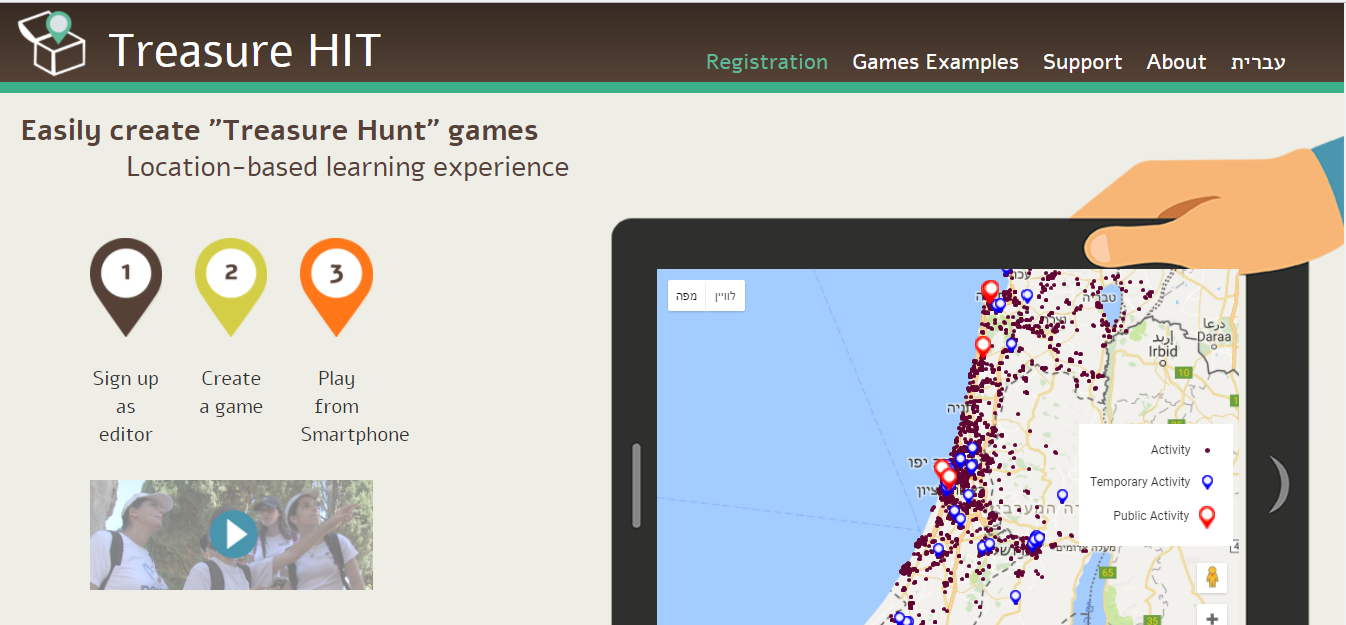
Using augmented reality, you add a layer of information, which is accessed via a QR Code that gets scanned from within the app. (It sounds complicated, but really is quite user friendly!)
So the English Day works like this:
We have two of them: one day for the 7th grade and one day for the 8th grade (over 100 kids in each grade).
Each grade is divided into smaller groups (homeroom classes are divided in half or thirds) and made into teams of between 8-12 students. Teachers who are relieved from teaching those classes on those days, are assigned to the groups as chaperones.
Each English teacher runs a station that requires the participants to do something related to the theme. We try to have a wide variety so that all learners get to participate in activities that appeal to them (music, arts and crafts, puzzles, dancing and more). I like to do digital stuff (surprise!)
Treasure HiT:
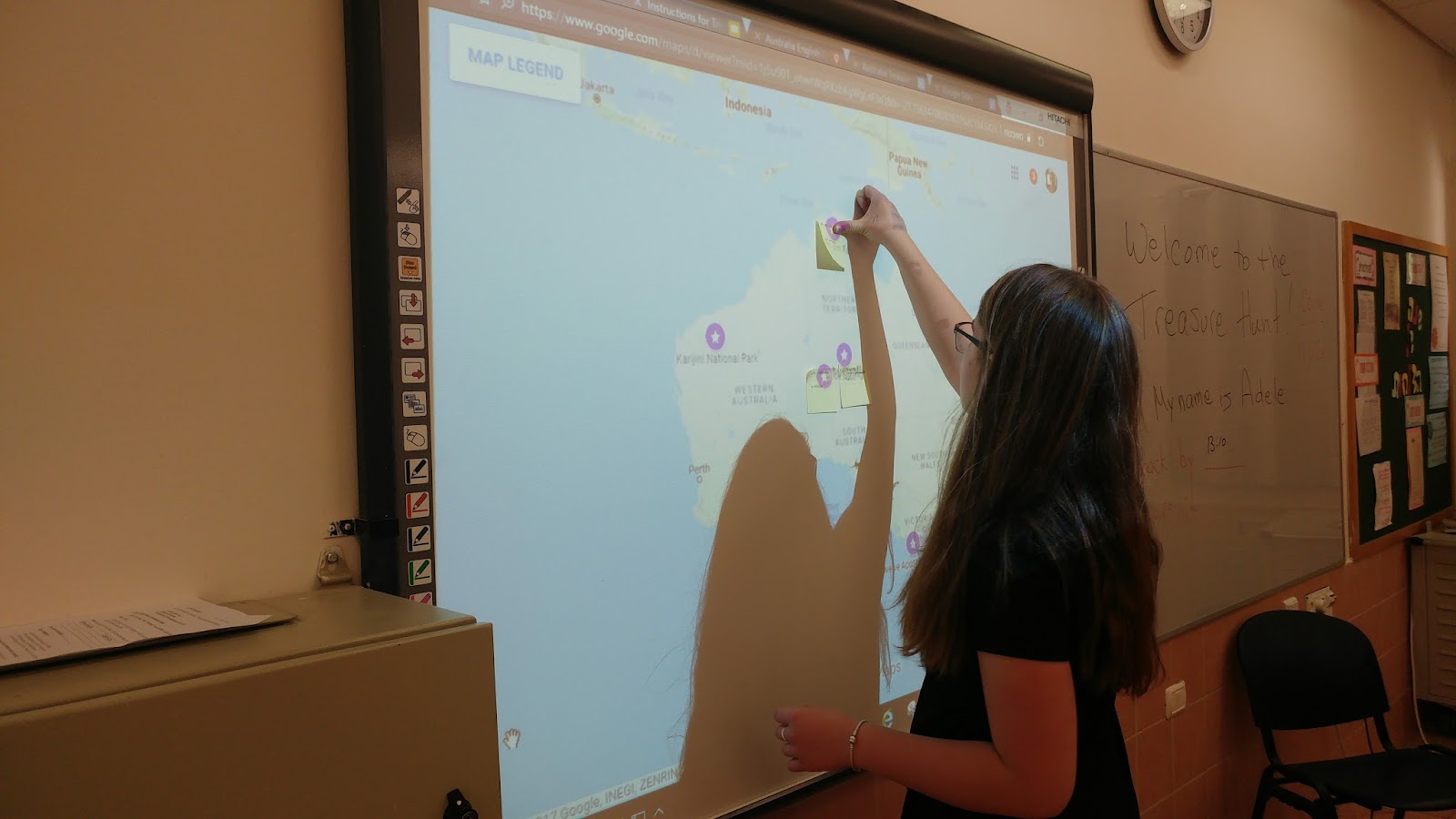
For the activity I prepared that has the kids discovering popular tourist attractions in Australia, the participants needed to use their mobile phones, wifi, and, in the end, place the sites they found on a Google Map that I had prepared ahead of time and screened on the board.
Preparation:
- I registered for Treasure HiT (keep in mind that it can take a few days for the registration to be accepted).
- I collected information about different tourist sites on the internet, and found short 360 degree clips for each (it’s not a “must” for your treasure hunt - you can make one with just Trivia questions - but I wanted to actually provide information).
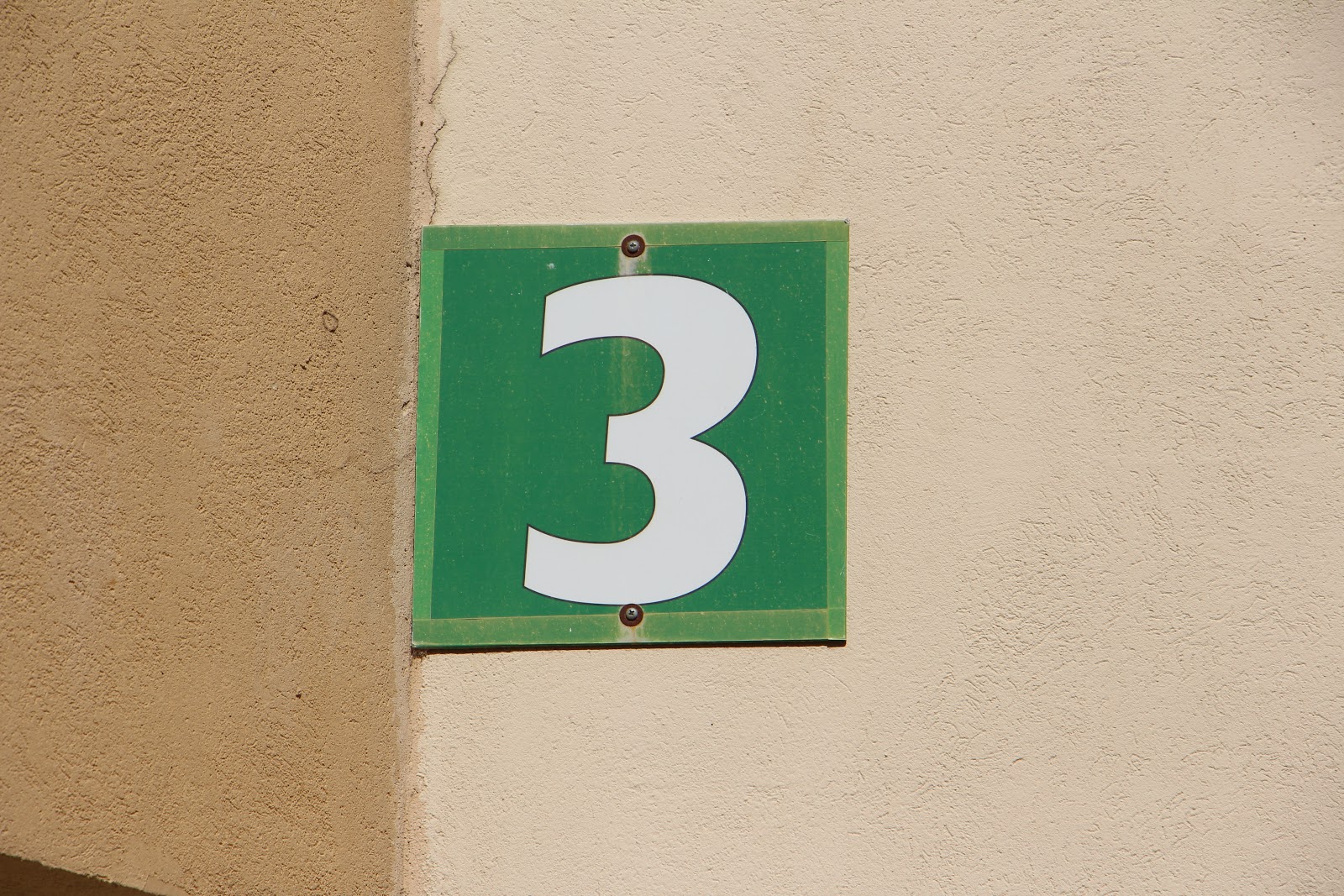
- About a week before the English Day, I walked around school taking a bunch of photos of different places on campus that would be easily recognizable by our 7th and 8th graders, to serve as the clues that would be sent to their phones.
For example this drawing on one of our walls:

or a sign in the cafeteria (which EVERYONE knows how to find)

or just a sign showing the building number:
4) Then I started putting it all together:
You can download an editing guide from their site here.
In the classroom, the students divided up into groups of 3 or 4. Each group needed to use ONLY ONE smartphone for the game (they needed wifi and location set to “on”). Others could use their smartphones in order to translate words, if needed, or look stuff up on Google. Each group had to choose a group name and enter it, after joining the game with the game code which you get as soon as you make the game.
The program sent them a clue (a photograph) to lead each group to their first station. Once at the station, they had to scan the barcode (which I printed out from the program and hung up earlier that day). Once the phone read the barcode, it displayed the name of the tourist attraction, a short description of it, and a video clip. The multiple choice question they had to answer was about something they saw in the clip. (I used MC questions rather than open-ended ones because there were just too many possible answers. If you are setting a question with only one correct answer, you can use the open ended option.)
Since I set the program to start each group at a different station, they were running around in different directions. I made up more stations than could possibly be covered by one group in 20 minutes, so that TOGETHER the groups would cover ALL of the stations. The students were told to be back in the classroom in 20 minutes.
From this point on, I had 20 minutes to myself (because THEY were running around our campus discovering information about different tourist sites in Australia)!
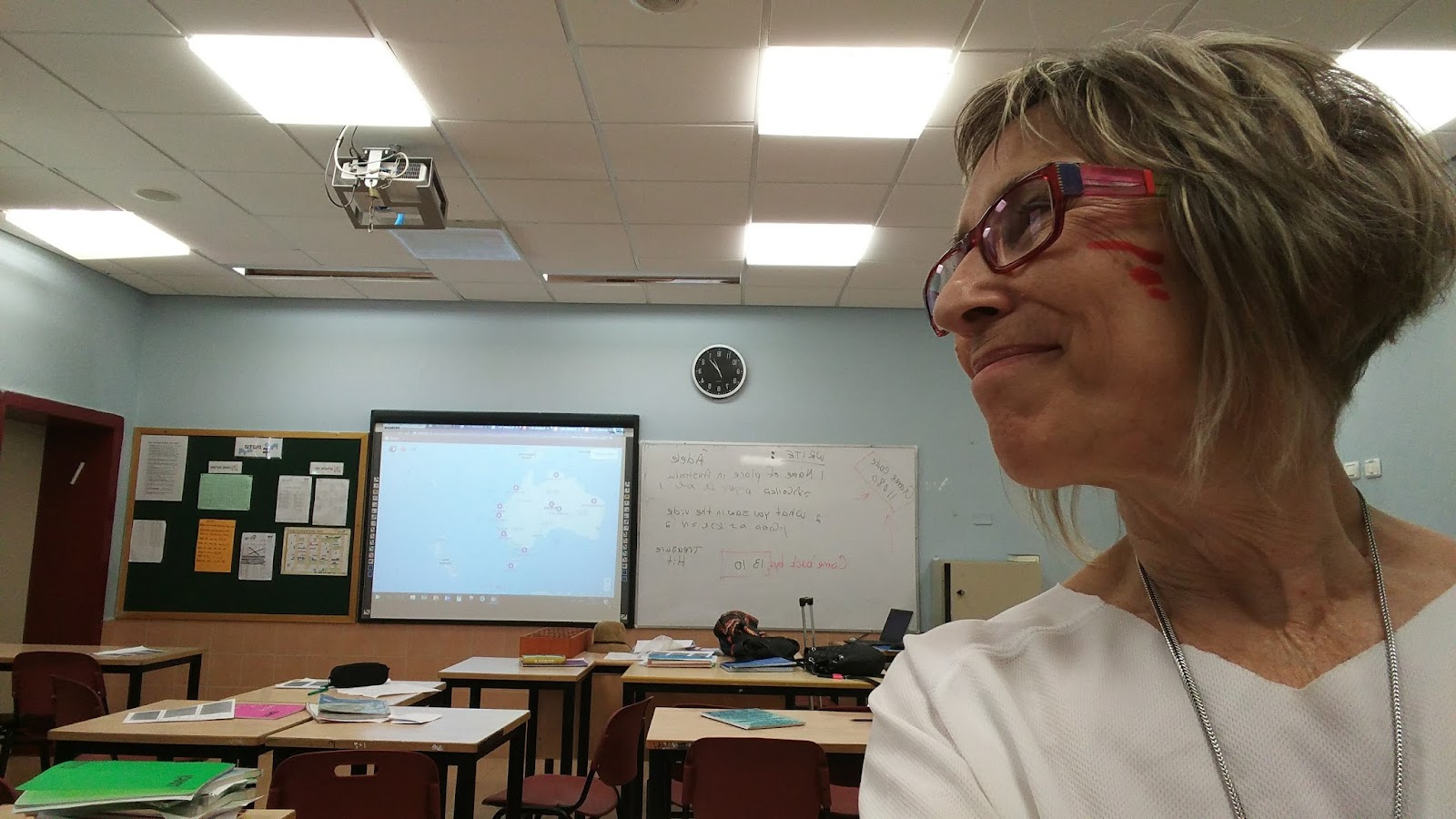
Once they returned, they had to copy the information gleaned from each site, onto post ‘ems, and stick them on a Google Map of Australia, which I had already marked out with the different sites they would be finding. (Note: IF I had been doing this with my OWN class, and we had a double lesson, I would have taught them to mark the places on a Googlemap, themselves, but we didn’t have the time to do that here.)
There IS a support team, if you run into trouble, but it takes a few days for them to get back to you, so DO prepare this at least a week before you need it so that you can check it out, see if there are any glitches and get help if you need it.
The Treasure Hunt was GREAT fun, and I’m already using it for other classes / courses. So - how would YOU use this in YOUR EFL classroom? Share your ideas, below!
Digitally yours!
@dele


