Followers

Wednesday, February 17, 2016

Learning for Real

I'm excited and exhilarated, despite the late hour and the exhaustion of chugging into the end of a VERY long week (with three too many long rides into Tel Aviv). But I was at one of my favorite places there today, at one of my favorite learning opportunities: a Google Teachers' Academy alumni reunion at Google Tel Aviv.

We heard about the hopes and plans of the people at Google, learned about what it is like behind the scenes at one of the world's biggest extravaganzas of taking advantage of the wisdom of the masses: Waze. Then we went for dinner. (As important as the presentations and lectures are, no less important is the schmoozing done between the sessions.)

When we came back from dinner we were ushered back to our seats through a part of the hall that had earlier been filled with rows of chairs, now set up with tables and paper all over the place. We were told that we were going to experience one of  the latest teaching trends.

We were handed clear bags each containing a piece of colored plastic with holes in it, batteries, a box for a motor, assorted plastic paraphernalia, a gazillion rubber bands and some suspicious looking wires. We were told that we could scan a barcode that would show us an instructional video, but were encouraged to try and figure out for ourselves how to "go forth and build a Drawbot"!


I couldn't view the video properly on my phone, anyway, and I was chomping at the bit to crack this one on my own. It took a while, and I needed a few leg-ups along the way, but I finally did it!

I looked at my beautiful (albeit wonky) DrawBot with pride, kvelling over the way it puttered along (even if it only moved in a straight line, rather than in graceful circles like the really "cool" ones did... a Bot only its mother could love). And then I looked up, and saw a room full of some 50 teachers all building and helping and laughing and watching their DrawBots -together and separately - draw a montage of mechanical drawings on the huge sheets of paper on the floor.


This is Maker Space.  This is Maker Culture. This is when the magic happens. 

Can you imagine bringing this excitement into the classroom?  I haven't processed the idea enough yet to figure out how to harness this energy and experience for the EFL classroom. I asked one of the presenters. He said: "It's all about language! Following instructions in English!"

Hmmm.... but WE didn't bother to follow instructions. We preferred to figure it out. Why would our students?

Still...... I have no doubt that there is great potential here.  What do YOU think? How could this be used for EFL?  You can find out more on their website: ForReal


Digitally yours,

@dele

Saturday, January 23, 2016

Old Faithful: Linoit


Linoit is not new. In fact it's probably one of the first collaborative tools I learned to use. Last week's blog was about making (what I later learned was called) "Quote Graphics", for a Post-reading Activity for a literary text (in this case, we were working on The Road Not Taken). There I explained the process, and that the final products were to be uploaded to a Linoit.

Then I realized, that I had never actually written a blog about Linoit! I have known (and loved) Linoit for at least 5 years, and sort of assumed that EVERYONE knows about it. But just so I am sure that EVERYONE in the WORLD knows about it (because everyone in the world reads my blog...hahaha... as if) I want to sing its praises!

Linoit is an online tool that is a virtual bulletin board. On that board, people can post sticky notes, pictures, graphics and even videos. There are all sorts of fancy ways to use it, when all of the participants are signed in, but I usually use it the generic way, so that anyone who has the link, can post on it. 

Linoit has stood the test of time, because, unlike other applications that come and go, Linoit still ROCKS! And I can use it even MORE easily today than I could in the past, because ALL my students have cellphones! I used to use it with the students working from their computers, which limited it to either homework or when I would get the coveted computer room (not complaining - our school is well endowed technology wise... but still ... it meant I needed to be sure to plan in advance AND remember to get the computer room, and all for an activity that is really quite short). Since they all have cellphones, I can just have them do their task for the 5 minutes it takes to do it, show the results on the board (in fact, they really get a kick out of watching their notes appear) and then go on with other stuff. 

You won't BELIEVE the things I use it for!

First of all, with my students:

When I first started teaching the class (when they were in the 10th grade) I used Linoit with them to introduce themselves. We also used it to send New Year's Greetings to each other. (I have since deleted those boards.... didn't know I would be blogging about them three years later ;-) 

That same year, though, I used Linoit with them for a pre-reading activity for teaching the poem Count That Day Lost:


This year, I used the tool as part of the process of teaching the literary term "Conflict". MOST of the class did the activity on the REAL bulletin board in the classroom, but those who were absent that lesson (and many were because of some other activity) were able to make it up at home, on this board:


In last week's blog, I described the activity I was planning, using cellphones and making the "Quote Graphics" as a post-reading activity. They went out, took pictures with their phones, used my blog to see what graphics programs they could used, and had a great time doing it! (I shared the link through our class What's App group.) They are still in the process of uploading them, but this is what they have done so far: 


I also use Linoit in my counseling work. This year it was part of our winter Newsletter - sending greetings to each other from around the country:


And Lionit even helps me keep it all together when doing the very confusing and complicated task of organizing the oral testing roster for my region (designating which teachers go to test in which schools) (a system originally devised by my friend and colleague Judie Segal, using REAL Post It notes on a wall or huge window, but with this virtual version I have no worries that a strong breeze, frisky dog or mischievous cat might knock them off, making me scramble back to square one!


Here's a short, concise tutorial about more ideas for using Linoit and a quick "How to":


Have you ever used Linoit? Can you think of ways that it can help you in your teaching? Other aspects of your work? If so, please share!


Digitally yours,  

@dele

Saturday, January 16, 2016

Making Pinterest Posters for Activities with Literature Lessons in EFL

I LOVE finding ways to have my students use their cellphones in the classroom. It engages them and relieves ME from having to remind them to "Put them away, or they're mine" (my students know my mantra, and finish the sentence for me.. and the punishment is that the phones get thrown into the "phone-jail" on my desk for incarceration until the end of the lesson.) 


So any chance to use them for learning, is a chance well taken. 


I think most of us know what Pinterest is by now. (In case you do not, Pinterest is a social network that allows users to visually share, and discover new interests by posting (known as 'pinning' on Pinterest) images or videos to their own or others' boards (i.e. a collection of 'pins,' usually with a common theme) and browsing what other users have pinned.Jan 20, 2014 Defined by Google


I am pretty sure that lots of my students are familiar with Pinterest, and even if they are not, they are familiar with the Memes and other forms of communication that relies more heavily on graphics than words, from Facebook. It is not easy to get one's message across in a succinct soundbyte and graphic, so I thought that it would be a good skill to teach my students. 


For my students' Post-reading activity for the poem The Road Not Taken by Robert Frost, I want them to make a pin for our class pinboard on Linoit.

Their task will be to take a photograph with their phone camera, that will be appropriate for illustrating part - or all- of the poem. They will need to upload it to an application, add the line - or part - of the poem that it illustrates, and then share it on the designated Pinterest board. 


I figured it would be really simple to find a bunch of applications, since I had saved a blog about them. But to my dismay, when I went in to play around, I found that many of them were defunct (later I checked the blog, and saw it had been written in 2012... the relevancy of phone-based applications seems to be very short - as short as the life-spans versions of different phones (my beloved LGg3 is from August 2014, and I am already starting to feel its age :-( ).


I have played around with the following programs, and will recommend that they try them:

Font Candy  works nicely but you need an iPhone for that, as far as I can figure. You can download it to your computer, with pretty nice results. This is what I made from my computer:


I made an example for them using PhotoGrid, but was not overly pleased with the ease of editing. (This tutorial shows how to make a collage, as well - but I did it with one photo and added the text.)


PicLab is another option, which worked quite nicely for me. 


In the end, I am going to have them upload them all to a Linoit. They will also have to explain the reasoning behind their choice, to include in their log. Hopefully, the Linoit will soon fill up with their work! :-) I do NOT plan on using the Post-reading as the graded component for this unit, so I can just let them have fun, and I will get to feast my eyes on their pictures and quotes, and see their interpretations. 

Do YOU use this kind of app with your language learners? If you do, please share how, in the comments, below! And if you have a tool that you find especially useful for this, I'll be HAPPY to hear about it!

Digitally yours, 


@dele

Postscript:
Well, I've just learned that they are called "Quote Graphics". Hat tip to Denise Wakeman. Now I have to go read her blog! ;-)

Saturday, August 22, 2015

Three Great Apps for Keeping Track of Stuff


by Christian Holzinger from http://unsplash.com/


The summer is almost over (not that we teachers REALLY get to sit for two months under a beach umbrella with our legs up sipping a Daiquiri and reading a great book - although I DO think that that should count towards in-service teacher training... being well-read is an important quality for a teacher).  Most of us will be heading back to our schools in the next few days for staff meetings, and to start preparations for a new school year. 

In order to keep track of what I have to do, I use Google Calendar. I would absolutely be LOST without it! (Ummm.....well..... no.... that's Waze..... I would be absolutely LOST without Waze.....but I would never remember what I need to do, and when, without my Google Calendar.) But that's for a different blog post. Since I no longer use the hard-copy calendar diary that we get at the beginning of the school year from our Teachers' Unions, I had to find something to replace the little pieces of paper that used to populate my calendar diary, (as well as my refrigerator door).  Here are a few different ones I have tried (all have at least basic actions that are free).

Any Do  

Any.Do lets you plan your day (it will pop up at a set time each morning and invite you to "plan your day". It lets you write your To Do lists, classify and label them, and will send you pop up reminders. When you miss a call, it will remind you later on that you had a call, and ask if you want to call them back, and if not now, then when (in an hour? this evening? tomorrow? next week?). I see now that it also has developed a desktop Chrome app, so that you can use it on the go, or in front of your computer. I had used it for a while, and, although it is no longer my app of choice, I suggest you look into it and play around. (I believe it is also an Israeli brain-child, so if patriotism is a selling-point...) 


Out of Milk 


I had been using Out of Milk for a REALLY long time, and was completely happy with it. It is a very convenient way to make your shopping list. You can divide it into categories (stores, sections of supermarkets, whatever) and sync it. However the more advanced options (for example, sharing a list with someone or adding a photo) are not free, and the bar-code scanner (for adding something to the list using the bar-code) never worked properly for me here in Israel, anyway. Although the current version has become surprisingly graphically pleasing, let's face it: I really want to use an app that does more than just a grocery list. 


Google Keep
Google Keep Widget


View on phone
Google Keep is currently my favorite go-to app for this purpose. I use it for my shopping lists, (and have shared that list with my son, so that if he wants me to get something when I go to the store, it's already in my list), and can even add a picture of something I want to get, so that I don't have to write a lot on the list, or describe it to the store keeper (the natural mosquito repellent in the brown bottle with the light blue and green label) I can just show the photo!


Google Keep syncs with my computer, so I can use the desktop view (below) OR the mobile view (above) on my phone. I make all sorts of notes of information that I need to find quickly (my license number, which dyscalculic me never remembers, the size of the windows I want to buy curtains for "someday") and - most importantly, my "To Do" list! There is an option of adding a reminder that will pop up to remind me to do something. It will even add a location reminder, so that if you want to do something when you are, say, in Ashkelon, the reminder will pop up next time you are there!


Desktop view

You can change the color of a note, add a label, add check boxes (and tick off a task when it's been done - then delete the "done" tasks). You can also copy a note to Googledocs, and further develop it there!  

If you are on the go, you can dictate and record your note. You can access it as a recording as well as a written note (because sometimes - especially when you dictate something with a Hebrew word or name - your phone won't know how to write it correctly - or it auto-corrects to something absurd- the fact that you have your voice recorded, can come in very handy to figure out WHAT you were thinking when you wrote that note! ;-) .)

Thanks to the sharing option, you can use it to share individual notes with your family, or colleagues, or anyone with whom you wish to collaborate on something, and share "To Do" notes! All your notes sync to all of your devices that are signed into Google Keep (mobile, desktop, tablet). I haven't used it at work yet, but I can see the potential as being ENORMOUS! The only thing you (and whomever you want to share a note with) need is a Google account and to install the app. Once you have done that, you can share away! I might try it with some of my students this year!

What I am actually hoping for is an integration between Google Keep and Calendar (something I see has been a pending request on the Google Help Forum, where they have been begging for for it for two years already). THAT would be PERFECT and solve ALL of the problems in my life (well... ok - maybe not the peace in the Middle East thing .... but you never know!)  Google Calendar has "Tasks" (will address that when I write about Calendar) which is helpful, but not as superb as would be Google Keep + Calendar  teamed up together. 

Do YOU have an app that really helps you keep track of stuff, and would like to recommend? Have you tried any of the ones I have written about here, and would like to add your opinion? Please feel free to write about them in the comments below! 


From Pixabay
Have a GREAT school year! (And one last summer cocktail, on me.)  

Digitally yours, 
@dele


Wednesday, June 24, 2015

Integrating Barcodes and What’s App in a Sherlock Holmes Murder Mystery Game

Each year our school has “English Day”, for the 7th and 8th grades. Each grade is on a separate day, and on that day the English Staff prepare activities based around an English speaking country, to help our students learn more about that country in an experiential, exciting way. The classes are broken up into groups of 7-16 students. Each group is given a name that has to do with something British. A teacher is assigned to accompany each group. Each activity has a scoring rubric, and the class that scores the most points at the end of the day, wins!


I am not going to go into the details of the organization of the English Day, itself. I will just mention that it is a humongous job, which can only be achieved through teamwork and a very dedicated and determined person on the staff to coordinate it.


This year’s English Day was about the UK, and I wanted to teach my groups about Sherlock Holmes. I also wanted to incorporate technology in a meaningful way (of course!)


Here was the scene:
Fact: Sherlock Holmes interviewed people, looked for clues and then tried to understand what the motive was for the murder.  


Situation: Jackie Frisbee was found dead in the back of the classroom. The students had to find out who did it!


In pairs or threes, they had to:
  1. go and interview two suspects
  2. ask them 5 questions each and complete their chart.
  3. take a funny selfie with the suspect (with a sign with the name of their group) and send it to me on their What’s App
  4. try and guess what each person’s motive is


Then the pairs had to return to the scene of the crime (the classroom) and decide in their group - Who Dunnit?


The session started out by eliciting from the students what they know about Sherlock Holmes.

I then filled in any gaps with a presentation I made on Emaze (know it? You SHOULD! I’ll write another blog on it in the future)

Each pair was given an Information Collection Sheet, and the names and phone numbers of two people who work in the school, and agreed before hand to participate. They had to call the participant to find out where they were, and then go interview them. The participating “suspects” (who ranged in status from teachers, the guard at the gate,  to the principal and vice-principal) were given scripts with their fake names, the texted responses and were told that they could feel free to improvise, deciding how innocent or guilty they were going to look. They were also given two cards with barcodes that gave extra “secret” information!

Here was Carl’s text, for example:

What is your name?
Carl Frisbee
Guilty L4
How old are you?
17
What is your relationship to Jack?
Jack’s older brother
When did you last see Jack?
Right before class
Did you like Jack?
Only sometimes, he wasn’t the nicest person
Did Jack have any enemies?
Enemies? I don’t know, but I sure wasn’t his best friend.

Each of the pairs were supposed to interrogate two teachers, with overlap. For example, pair #1 went to interview Zmira and Rami. Pair #2 were sent to interview Rami and Moshe, and so on. That way they could gather and compare “evidence” (something that came in very handy especially when one of the teachers got the barcodes mixed up).
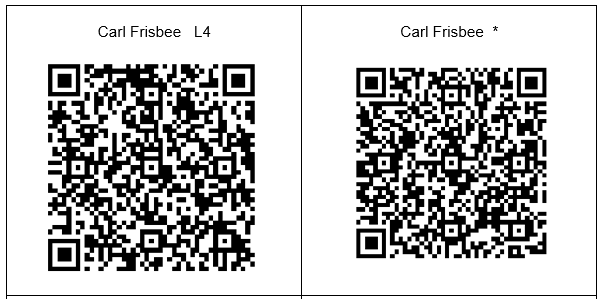
The barcodes had two different messages. The message for most of the time slots was something innocuous, the message for the time slot when THAT character was the guilty one, was more “sinister” Here is an example: The barcode on the left is the one that was shown ONLY during interrogations that took place with that character during lesson 4, the one on the right was for all the other lessons:

Barcodes_for_Blog.png

After the interrogation, the students had to send a photo with the “suspect” to my What’s App


The kids had a GREAT time running around the school, using their smartphones, talking English and trying to figure out which one of his teachers is the guilty one! (One of the parents told me that her son called her up in the middle of the day - something which he NEVER does - to tell her how much FUN he was having!!!! :-)

I'll admit that it was quite a lot of work, planning it all out (especially if you are as much as a perfectionist as I am) but definitely worth it !
Have YOU ever used barcodes and Whats Apps to do a Treasure Hunt? If so, please share!!!

Digitally yours,
@dele
P.S. Special thanks to Judie Segal for the inspiration, and the insight that “You’ve GOTTA have a dead body to teach Sherlock Holmes!!!!”


Saturday, April 11, 2015

Googleforms solve ALL of my problems - here's just one of them

Well, not REALLY all of them... but they DO help me deal with many challenges I have as a teacher, and by now, I find them absolutely indispensable. So if you are tired of hearing about the wonders of Google, do NOT continue reading.

But, if you ARE an EFL high school teach in Israel, and you are teaching the literature program, need to grade Logs and are interested in reading about how I am using Googleforms to help me with that, do read on. 

In the program for teaching literature in Israeli high schools, we need to teach six units of literature, and give a grade for each unit, according to the following calculation*:

  • 20% for organization (including all work for the Key Components of teaching literature, handing the work in on time, organized in specific order)
  • 30% for the graded Key Component
  • 50% for Summative Assessment (final test on unit)
(*NOTE for Israeli EFL teachers reading this, these percentages are only for students doing the literature program in the 11th and 12th grades this year. For 10th graders, percentages are different, but the principle of this use of Googleforms remains the same)

It is always a major job grading and keeping track of all this work. Grading just one unit for a class of 31 students literally takes days. So anything I can find to help me make that task a little more efficient and expedient, makes me happy.

This Passover vacation I had 31 units of work for a short story, to grade. In order to do so, I made a Googleform! On it I listed all of the elements and pages I required for each unit of work, as well as a place for the grades and a short description of the graded task the student chose to do. It looks like this:


As I read through each portfolio of work, I just tick off what is there, and what is not. Fill in the form and I have all of the information in one, easily accessible place. This is what the collection file (Responses sheet) looks like:


If you noticed in the Googleform, above, some of the fields are mandatory (they have a red asterisk next to them) and others are not (for example the last three are NOT mandatory). That is because the students have not taken the test yet. When they do, I will just go into the spreadsheet (Responses sheet) and add those grades in. I can also easily keep track of who handed work in late, with the automatic time stamp, in the first column.

As with excel, I can insert the equation for the final grade into the sheet, and then: voila! Final grades will be calculated, automatically!

Do YOU use Googleforms in unexpected ways to help YOU organize YOUR work or life? If you do, please share!

Digitally yours, 

@dele
Tuesday, March 31, 2015

Using Twitter as a PLN

Back on Twitter again (like my brother-in-law says, I'm like a dog with a bone....but I DO try to be discerning when choosing my bones).  
It seems to me that too many of my colleagues in this country tend to see social networking as only being for social purposes. If you do not understand the potential it has for professional growth, you may be missing the boat!


Experiencing the power

In the past few months, I have had the opportunity to get a taste of the excitement and power of Twitter. The first time was when I was at a rally, where there were tens of thousands of people (albeit, Israelis, mind you, who have NOT yet jumped on the Twitter bandwagon for the most part).  At one point one of the organizers told everyone to take a selfie and Tweet it with the hashtag #רוציםשינוי (wewantchange). I did so, and sent it out into the electrified cyberspace surrounding me.  Within seconds a stream of hastags flooded my Twitter stream! THIS is social networking - not that there will be any follow up for that hashtag, but there COULD be. 

And the thing with Twitter (unlike Instant Messaging such as Whats App, or Facebook IM, for example) is that tweets are public, permanent and searchable. So when I went into my Tweetdeck and did a search for the hashtag mentioned above, I found lots of tweets that had used it since (especially leading up to the Israeli elections) but when I went 23 days back, I could see the entire stream of Tweets that were sent from that rally (including my own ;-)


Another experiment I participated in not long ago was a campaign that Hamas leaders ran in order to harness the power of this tool for their own propaganda purposes. (Sidenote: the motivation I had for delving into Twitter in the first place was the war this past summer, and how I witnessed a young girl from Gaza gain a worldwide following of thousands - 181,920 currently - by tweeting from her home about the situation during the war. I realized that this was a line of communication that needed to be developed by people on our side of the border, as well.) 

The week-long campaign that a few of the leaders of the Hamas in Gaza ran was with the hashtag: #AskHamas and the unfortunate title of "Truth from the mouth of the horse". The campaign was apparently an attempt to disavow the label it has on it as a terrorist organization, however apparently the vast majority of the tweets were hostile to the Palestinian group. I popped in a few times to see what was going on with it and for the most part found that it had blown up in their faces. They were FLOODED with cynical questions from opponents from around the world. I saw it written about in a few online papers (and if I am not mistaken, reported about on a few TV stations, as well.) So although this was not what I would call a successful campaign for achieving what they had intended,  it DID demonstrate for me the potential this tool has for sharing opinions and crossing all borders!

Of course, it also demonstrated some possible pitfalls, but then again, from my own personal experience of trying to be an advocate of national, political issues, I have had the unpleasant experiences of being picked up by trolls spewing hate, whom I usually just ignore.


Harnessing the energy

After trying (without much success - yet ) to get my Israeli students onto Twitter, I have decided to focus on a different direction: the one I, myself, truly find Twitter useful for: as a PLN for EFL teachers here. 

A PLN (Personal Learning Network) is a network that " allows educators to seek advice, trade best practices, or simply network with other professionals". Part of my PLN is the group on Facebook EFL Digital Pedagogy in Israel (which you are all welcomed to join) as well as other FB groups on the subject. But as I have discovered, Twitter is a fantastic way to learn from professionals and their experiences from all over the world! (And as English speakers, there is a virtual universe of help, ideas and learning to be discovered out there!) 

Albeit - Twitter has room for only 140 characters (including punctuation and spaces) but most of the professional topics and ideas that people are sharing are links to articles and podcasts, so 140 is more than enough!

I access podcasts (which I admit I do not often have time to watch), but mostly I check out blogs and articles about digital issues that interest me, and I want to learn more about (favorite tools, best practices, ideas for projects, etc.) Seek and ye shall find!

My personal favorites

Here are some of my favorite names and their Twitter Handles (call names):

These are all educators or companies which are run for and by educators (many are language teachers - but not all. Many are EFL teachers - but not only).

If I am interested in learning more about a specific topic, I write the topic after a hashtag (no spaces). For example, I want to learn more about projects that people are doing with students on Twitter with EFL (English as a Foreign Language - which is what I teach). I wrote the two topics (with a space between them) in the "Search" window:  #EFL #twitter and came up with this (the ones I framed in red are those that I will click on and follow up):


Top results for search for #EFL #Twitter


Basic Twitter techniques

I can also "call out" to people by writing their Twitter handle, to get their attention (for example if I want to write to Silly Sally, I will write:  @SillySally . It will be visible to her and to those who follow the both of us. 

If I put a period (.)directly before the "at" sign @ (for example:  .@sillysally ) it will be visible to ALL of my followers in their timelines.

I can also write Direct Messages (DMs) to people whom I am following and who are following me (it must be reciprocal). These messages are still limited to the 140 characters, but they are private and others will not see them. 

I have just opened a collaborative twitter account and hope to get the team I work with at REED on board to experience the potential for learning through Twitter. I will let you know how THAT progresses - I am feeling optimistic that at least now that we are off school for two weeks, my colleagues might be tempted to experiment. 

If I have managed to entice YOU into giving Twitter a go for developing a PLN (or at least enriching your professional toolbox a little) the list of names and Twitter handles I provided above is a good place to start.  You can also follow me @AdeleRaemer and our team @EnglishREED !


And DO let me know if you get hooked! (Maybe I will follow YOU! ;-)  At any rate, don't let the ship sail without you!

Happy Passover!!!!!

Digitally yours,

@dele